CricoScore appThe CricoScore app is live on Google PlayLive on Google PlayScore ball by ball, even offline, and get live alerts on your phone.Get the appInstall

Player auction

How to set up a player auction on the website

After this guide, your auction has its rules, its teams and its players. It is Ready.

  • 5 min read
  • 10 pictures
  • Checked 6 November 2026

Who can do this

The tournament owner or a Manager. Other co-organisers can't.

Before you start

Part 1: Create the auction

  1. On the My Cricket page, click your tournament. Example: "Demo Cup 2026".

  2. Click the Auction tab. You see Run a player auction.
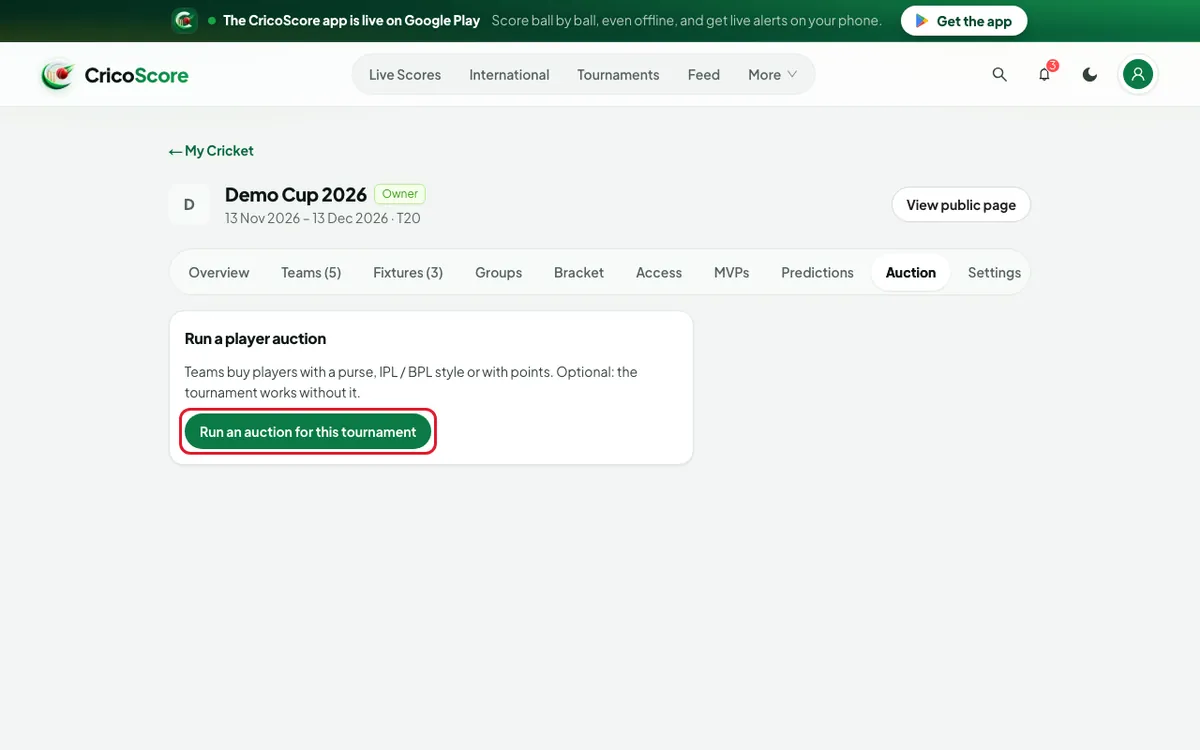
    The manage page of Demo Cup 2026 on a computer with the Auction tab open: "Run a player auction". The Run an auction for this tournament button is circled.
    Picture 1. Tap or click to see it bigger.
    The manage page of Demo Cup 2026 on a computer with the Auction tab open: "Run a player auction". The Run an auction for this tournament button is circled.
  3. Click Run an auction for this tournament. A list of starting rules opens.
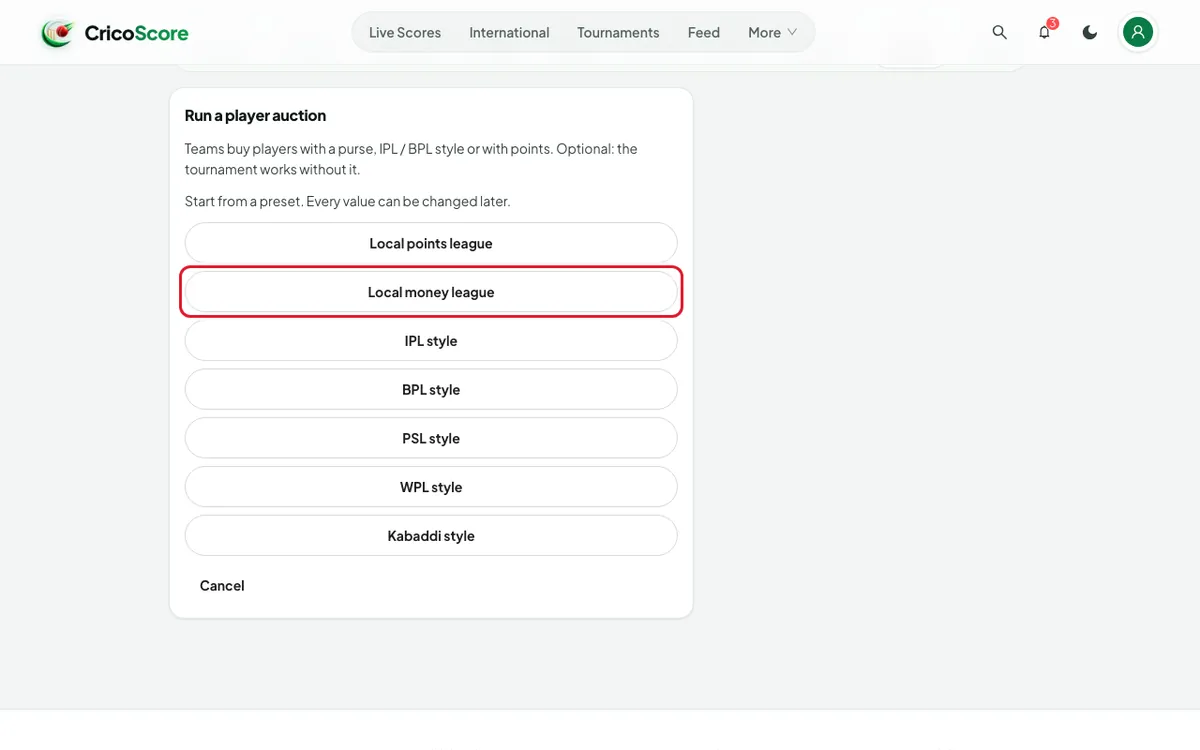
    The list of starting rules on a computer: Local points league, Local money league, IPL style, BPL style and more. Local money league is circled.
    Picture 2. Tap or click to see it bigger.
    The list of starting rules on a computer: Local points league, Local money league, IPL style, BPL style and more. Local money league is circled.
  4. Click one. Example: Local money league (money in taka). The auction page opens. Its name is "Demo Cup 2026 Auction". It shows Draft.
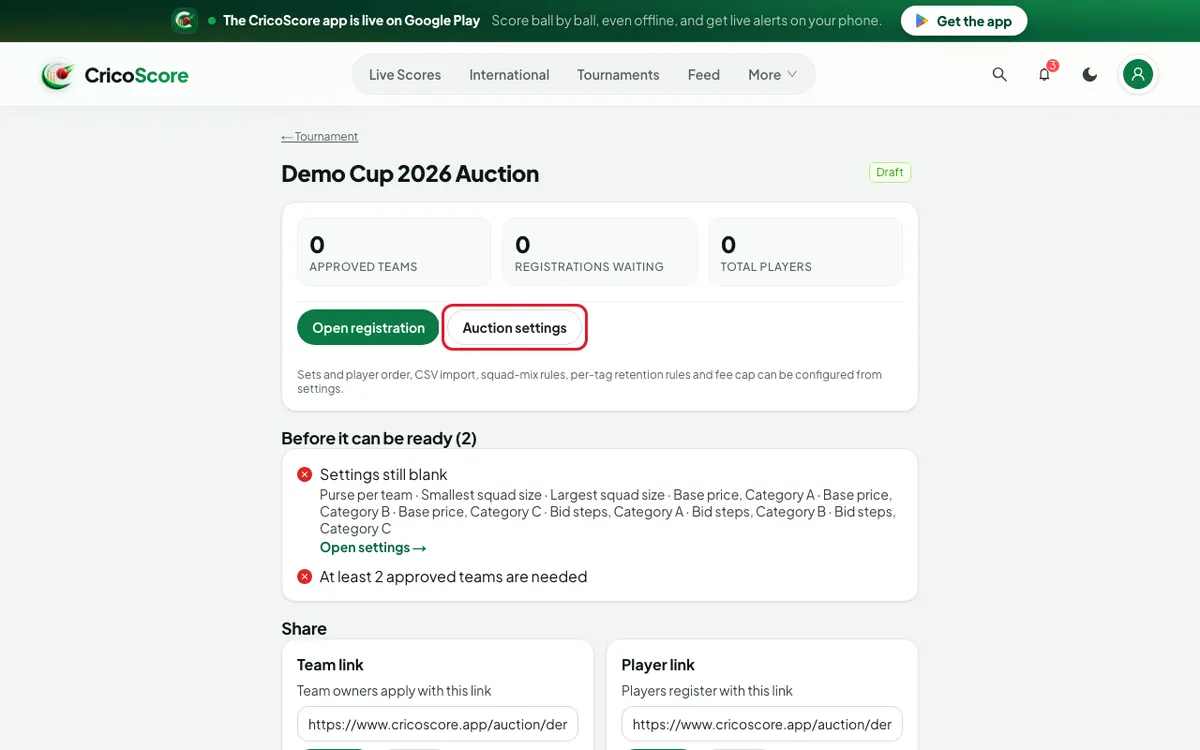
    The new auction "Demo Cup 2026 Auction" in Draft on a computer, with Approved teams, Registrations waiting and Total players. The Auction settings button is circled.
    Picture 3. Tap or click to see it bigger.
    The new auction "Demo Cup 2026 Auction" in Draft on a computer, with Approved teams, Registrations waiting and Total players. The Auction settings button is circled.

Later, open the auction from My Cricket → My Auctions, or from the Auction tab.

Part 2: Fill in the settings

  1. Click Auction settings.

  2. Under Contact and dates, type your Contact name and Phone / WhatsApp. Example: Rahim Uddin, 01712345678.

  3. Choose Registration closes and Auction day. Then click Save contact and dates.
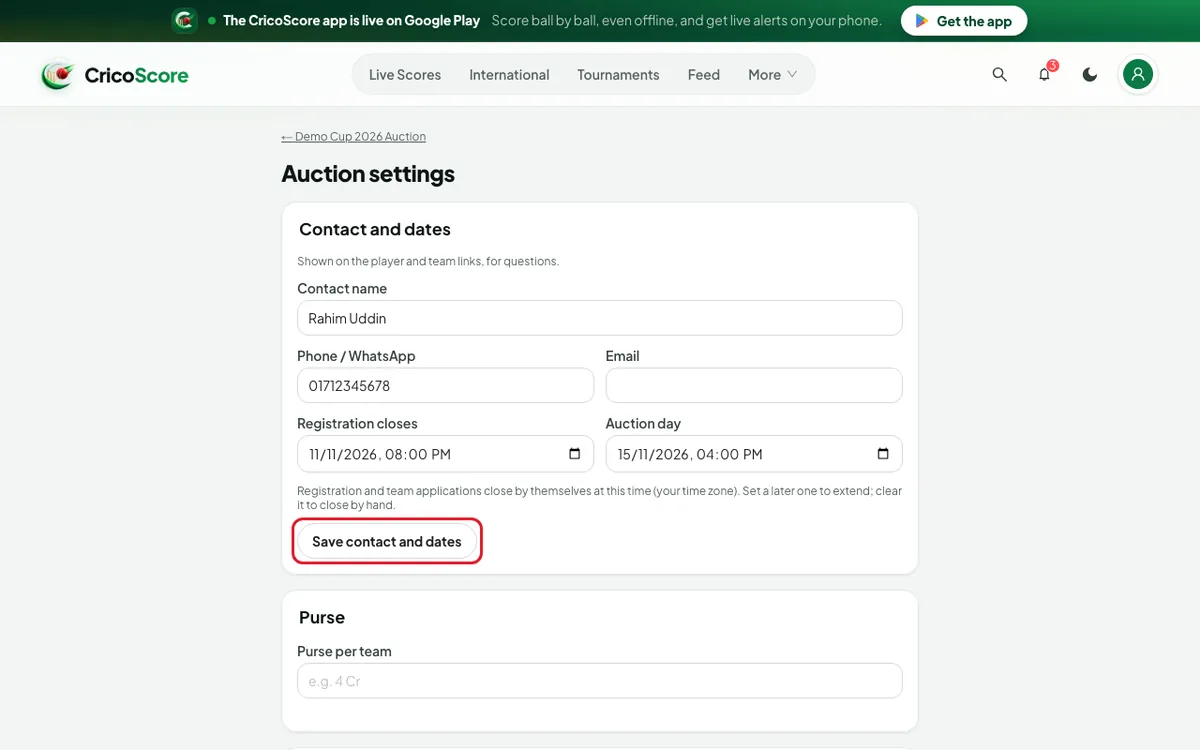
    The Auction settings page on a computer: Contact and dates filled in with Rahim Uddin, 01712345678, a close time and an auction day. The Save contact and dates button is circled.
    Picture 4. Tap or click to see it bigger.
    The Auction settings page on a computer: Contact and dates filled in with Rahim Uddin, 01712345678, a close time and an auction day. The Save contact and dates button is circled.
  4. Under Purse, type the money for each team. Example: "25 L". The page shows = Tk 25 L.

  5. Fill in Squad size, Base prices and Bid steps. Example: Category A "1 L", Category B "50000". Example step: from "0", step "10000".
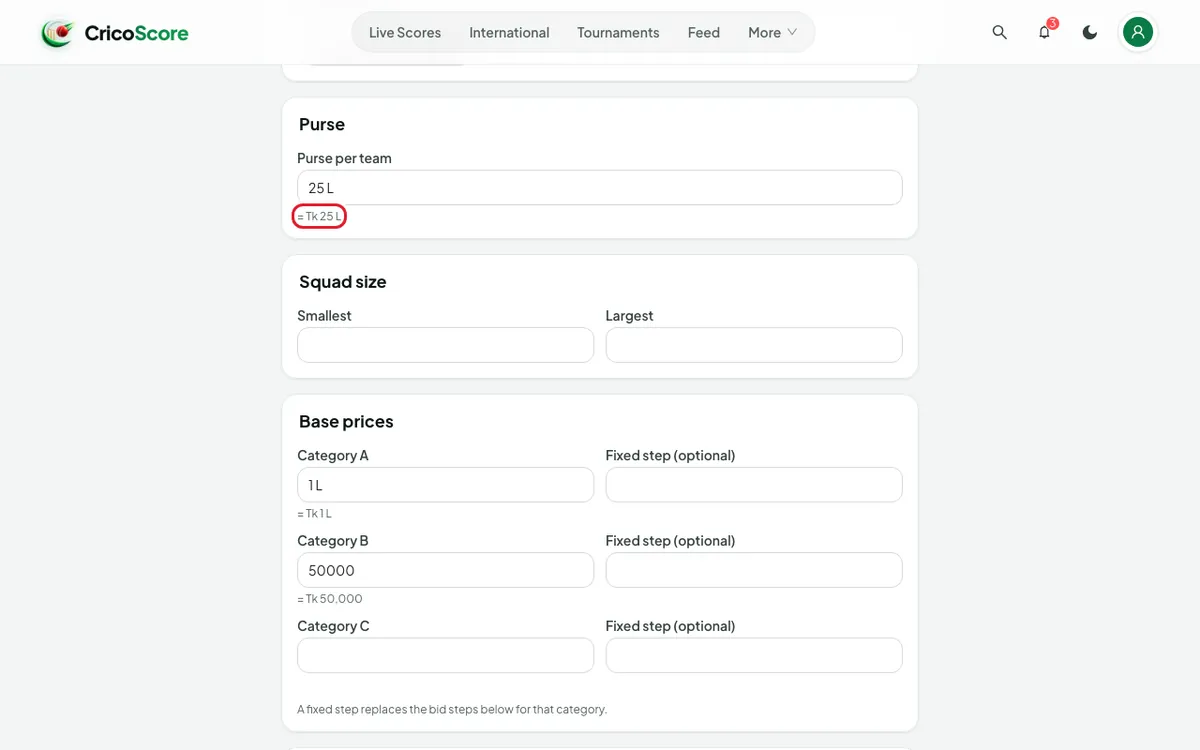
    The Purse and Base prices boxes on a computer: Purse per team "25 L" reads "= Tk 25 L", Category A "1 L" and Category B "50000". "= Tk 25 L" is circled.
    Picture 5. Tap or click to see it bigger.
    The Purse and Base prices boxes on a computer: Purse per team "25 L" reads "= Tk 25 L", Category A "1 L" and Category B "50000". "= Tk 25 L" is circled.
  6. Click Save settings at the bottom. If you see Fix these first, fix each line. Then save again.

Part 3: Bring in teams and players

  1. On the auction page, click Open registration.

  2. Under Share, click Copy link for the Team link. Send it to team owners. Do the same for the Player link.
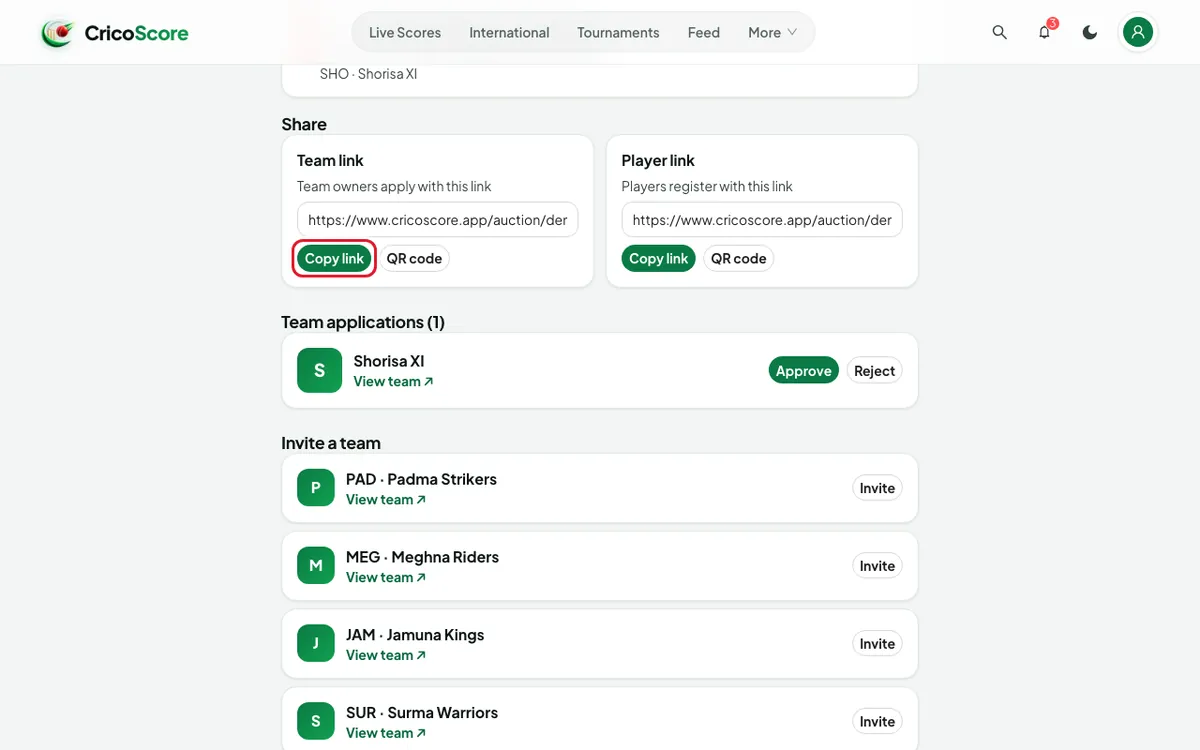
    The Share section of the demo auction on a computer, with the Team link and the Player link, each with Copy link, Share and QR code. Copy link for the Team link is circled.
    Picture 6. Tap or click to see it bigger.
    The Share section of the demo auction on a computer, with the Team link and the Player link, each with Copy link, Share and QR code. Copy link for the Team link is circled.
  3. Or, under Invite a team, click Invite next to a tournament team. Example: "Padma Strikers".

  4. Under Team applications, click Approve for each team you want.
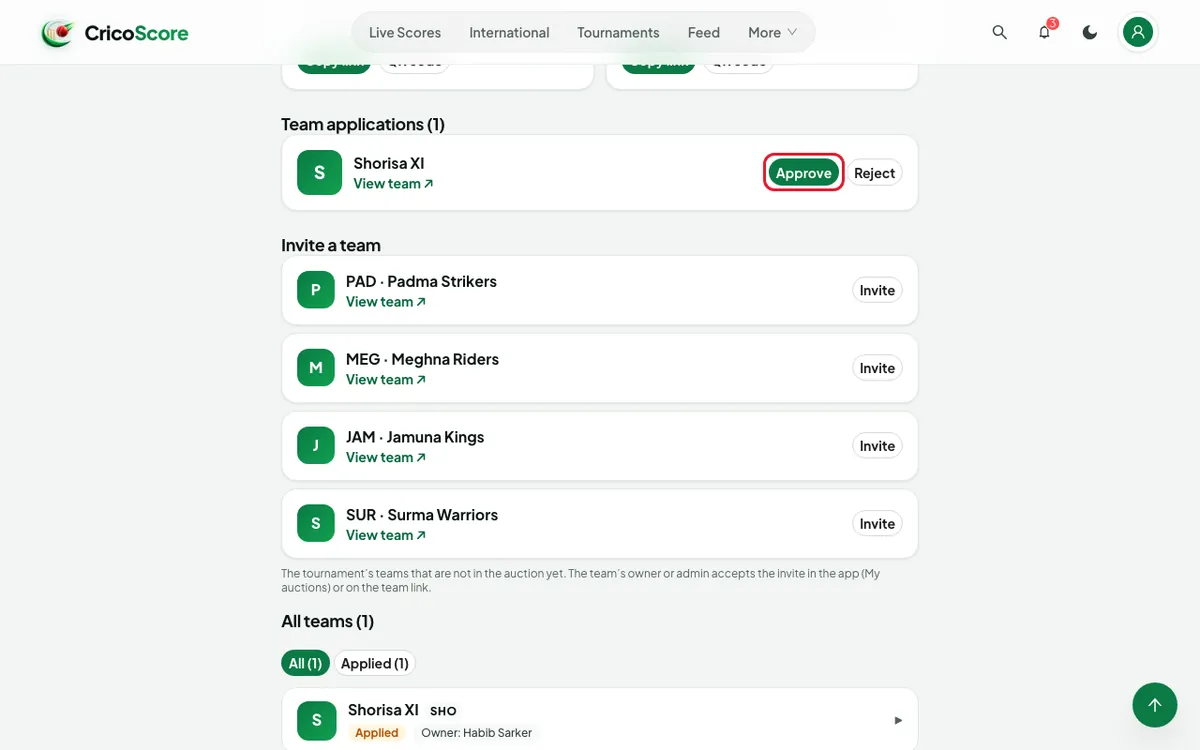
    Team applications (1) on a computer, with Shorisa XI and the Approve and Reject buttons. Under it, Invite a team lists Padma Strikers. Approve is circled.
    Picture 7. Tap or click to see it bigger.
    Team applications (1) on a computer, with Shorisa XI and the Approve and Reject buttons. Under it, Invite a team lists Padma Strikers. Approve is circled.
  5. Under Player registrations, click View profile ↗ to check a player.

  6. Click Approve. Choose the Category and the Set. Then click Approve.
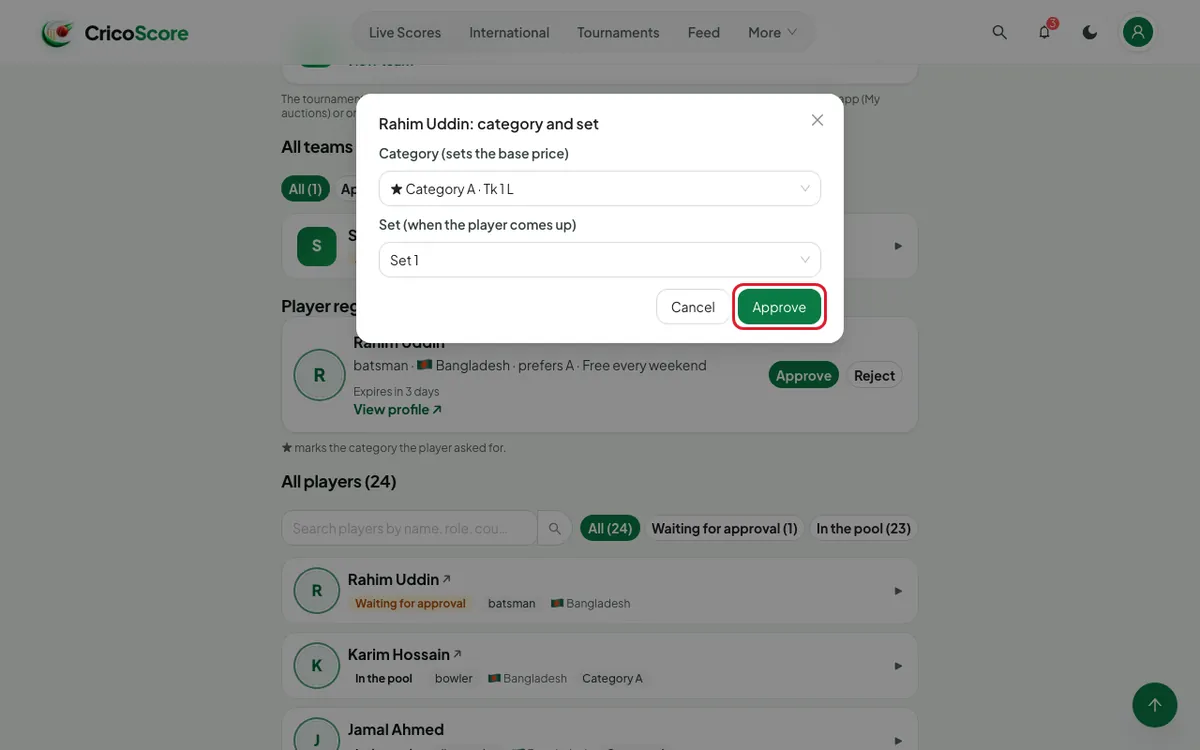
    The box "Rahim Uddin: category and set" on a computer, with Category A (Tk 1 L) and Set 1 chosen. The Approve button is circled.
    Picture 8. Tap or click to see it bigger.
    The box "Rahim Uddin: category and set" on a computer, with Category A (Tk 1 L) and Set 1 chosen. The Approve button is circled.

Teams accept the rules in the app. Players can register on the website or in the app. See the app guides: teams and players.

Part 4: Make it ready

  1. Click Close registration.

  2. Click Start retentions. If teams keep players, they show under Retentions to decide. Click Confirm or Send back.

  3. Look at Before it can be ready. Fix each red line. Open settings → takes you to the setting.
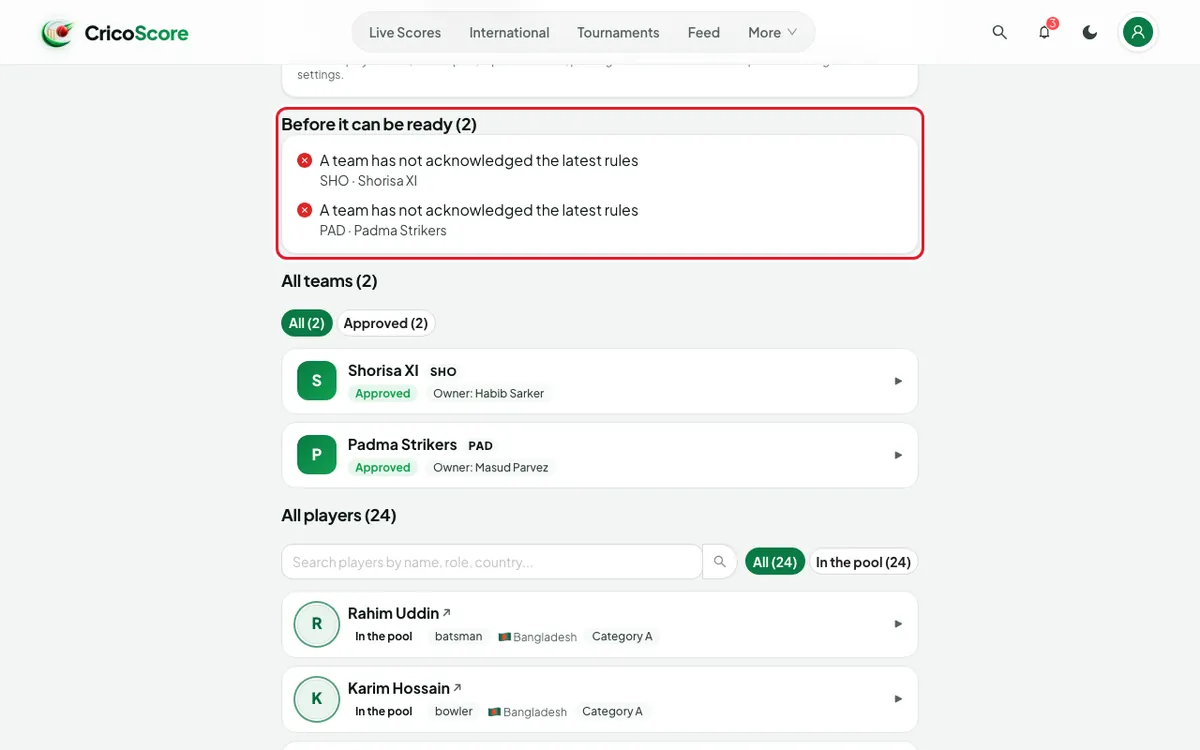
    Before it can be ready (2) on a computer: "A team has not acknowledged the latest rules" twice, once for SHO · Shorisa XI and once for PAD · Padma Strikers. The heading and the list are circled.
    Picture 9. Tap or click to see it bigger.
    Before it can be ready (2) on a computer: "A team has not acknowledged the latest rules" twice, once for SHO · Shorisa XI and once for PAD · Padma Strikers. The heading and the list are circled.
  1. When you see Ready check and Everything is in place., click Mark ready.
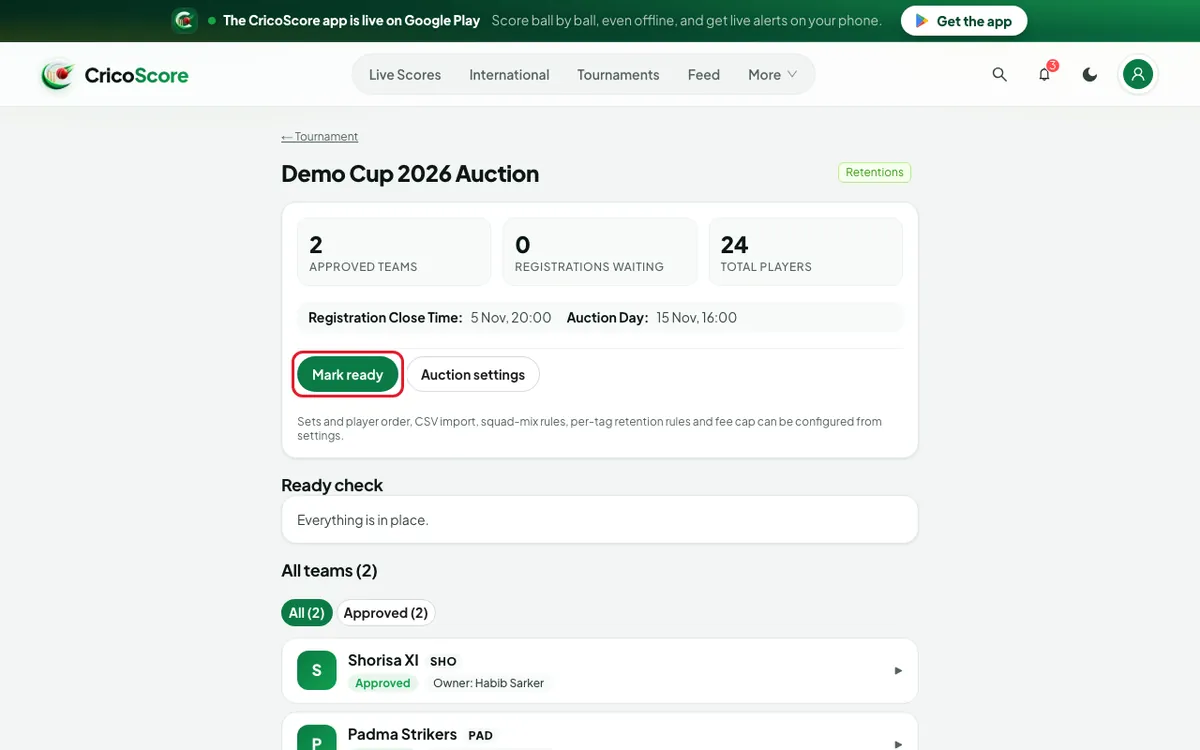
    The demo auction in Retentions on a computer, with Ready check: "Everything is in place." The Mark ready button is circled.
    Picture 10. Tap or click to see it bigger.
    The demo auction in Retentions on a computer, with Ready check: "Everything is in place." The Mark ready button is circled.

Common problems

ProblemWhat to do
I don't see the Auction tabOnly the owner or a Manager sees it. Ask the owner.
I don't see My Auctions on My CricketTurn on organiser tools first. See WF1.
Mark ready is greyA red line is still under Before it can be ready. Fix it.
At least 2 approved teams are neededApprove at least 2 teams.
A team has not acknowledged the latest rulesThe team owner must open the auction in the app and accept the rules.
The settings are locked once the auction is ready.The auction is Ready. You can still change Contact and dates.

Was this guide helpful?