


Player auction
How to run the auction console on a computer
After this guide, you can call each player, record the bids and sell the player.
Who can do this
The tournament owner or a Manager.
Before you start
An auction that shows Ready. See How to set up a player auction.
A computer with a keyboard. A big screen or projector helps.
Part 1: Practise first (optional)
On the auction page, click Start a rehearsal. A practice copy opens in the console. It shows REHEARSAL at the top.
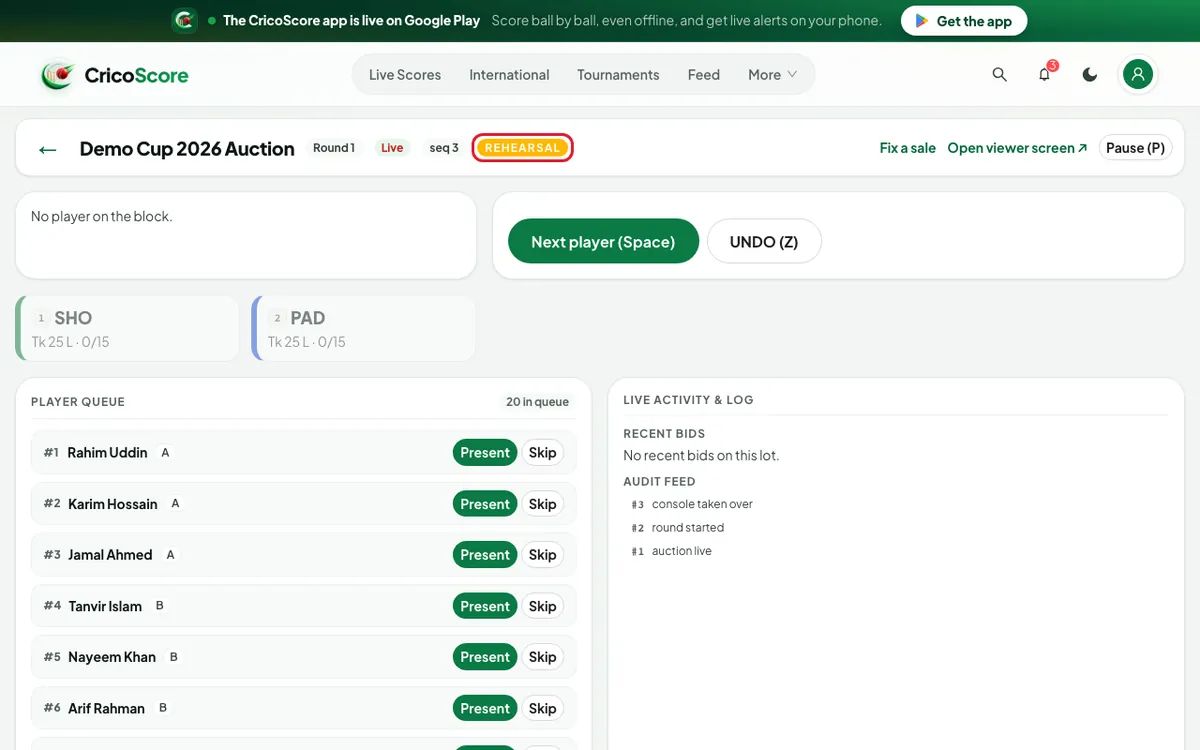
Picture 1. Tap or click to see it bigger.
Nothing in the practice copy changes your real auction.
Part 2: Go live
On the auction page, click Go live. A box asks Go live?
Click Go live in the box. The auction shows Live.
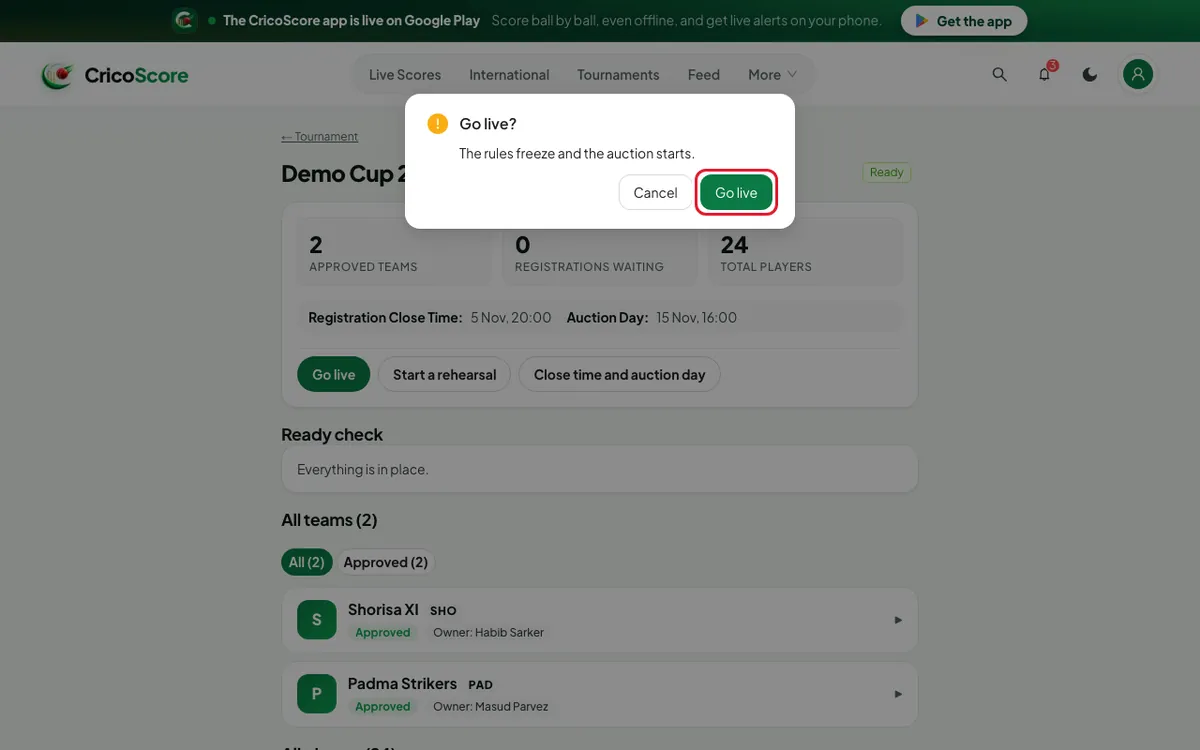
Picture 2. Tap or click to see it bigger. Click Open the console.
If you see Nobody is running the console., click Start the console here.
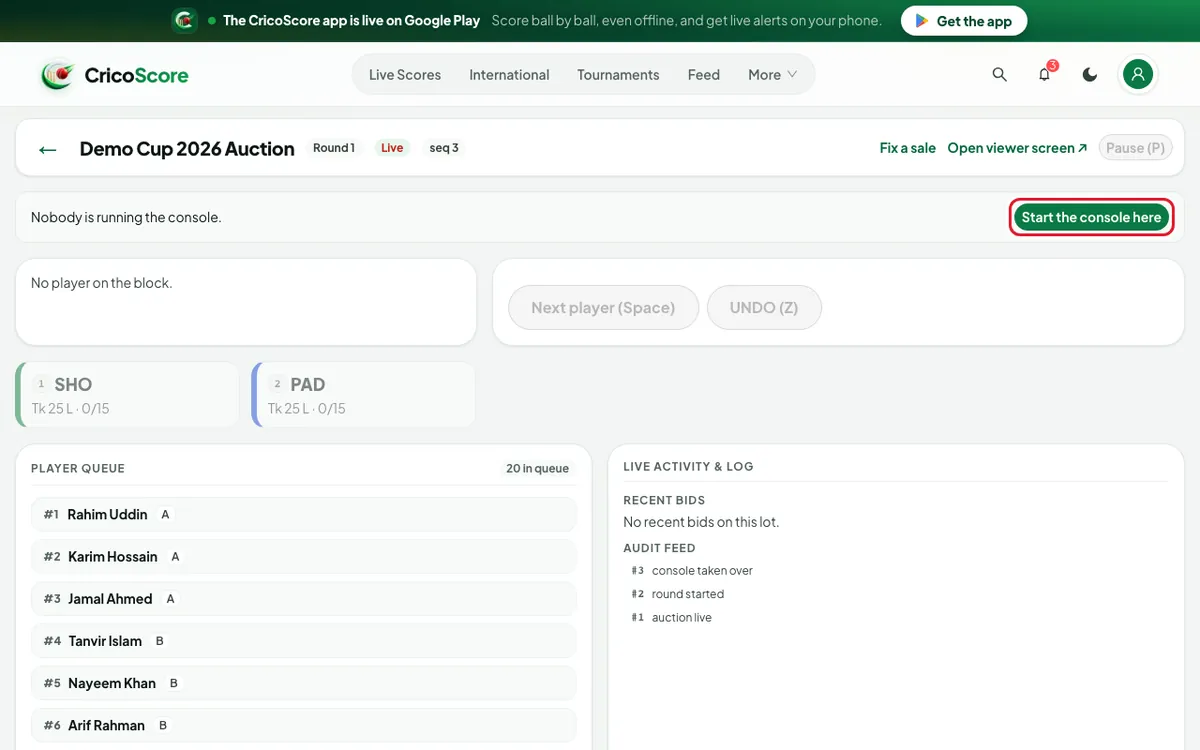
Picture 3. Tap or click to see it bigger. To show the auction on the projector, click Open viewer screen ↗. It opens in a new tab.
Part 3: Sell a player
Click Next player (Space). The player shows, with the base price. Example: "Rahim Uddin", Base Tk 1 L.
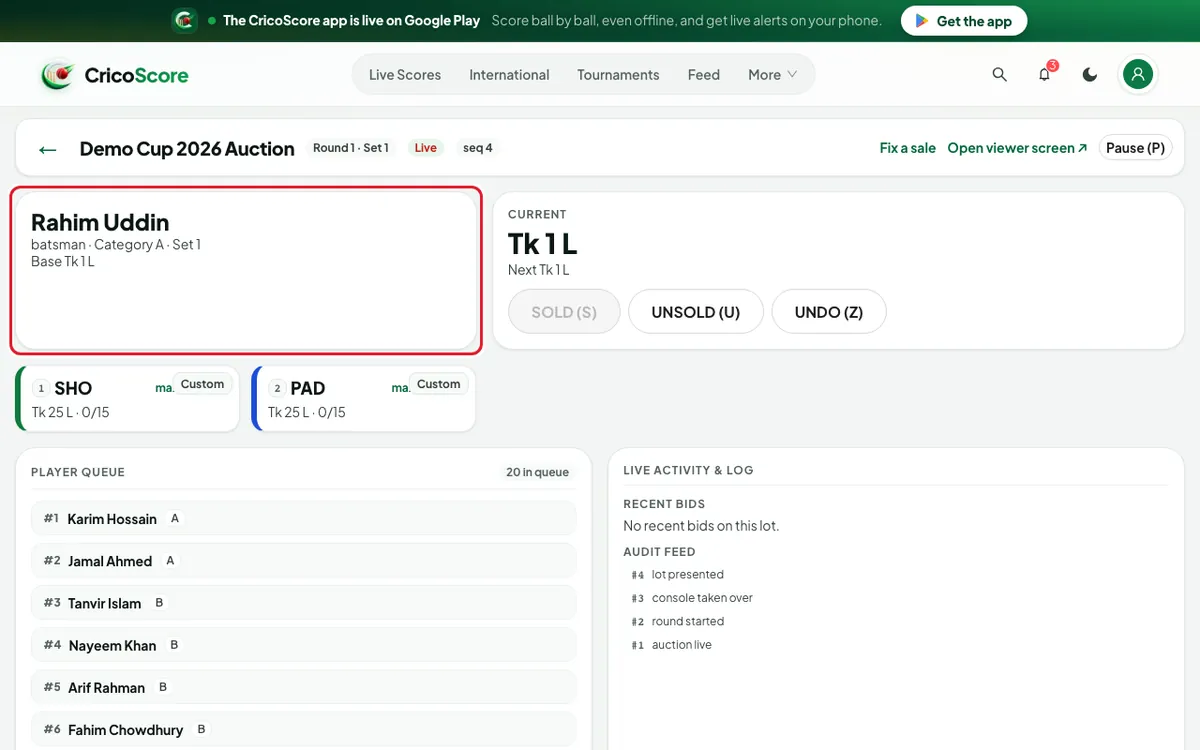
Picture 4. Tap or click to see it bigger. A team raises its paddle in the hall. Click that team's tile. The bid goes in at once, at the Next price.
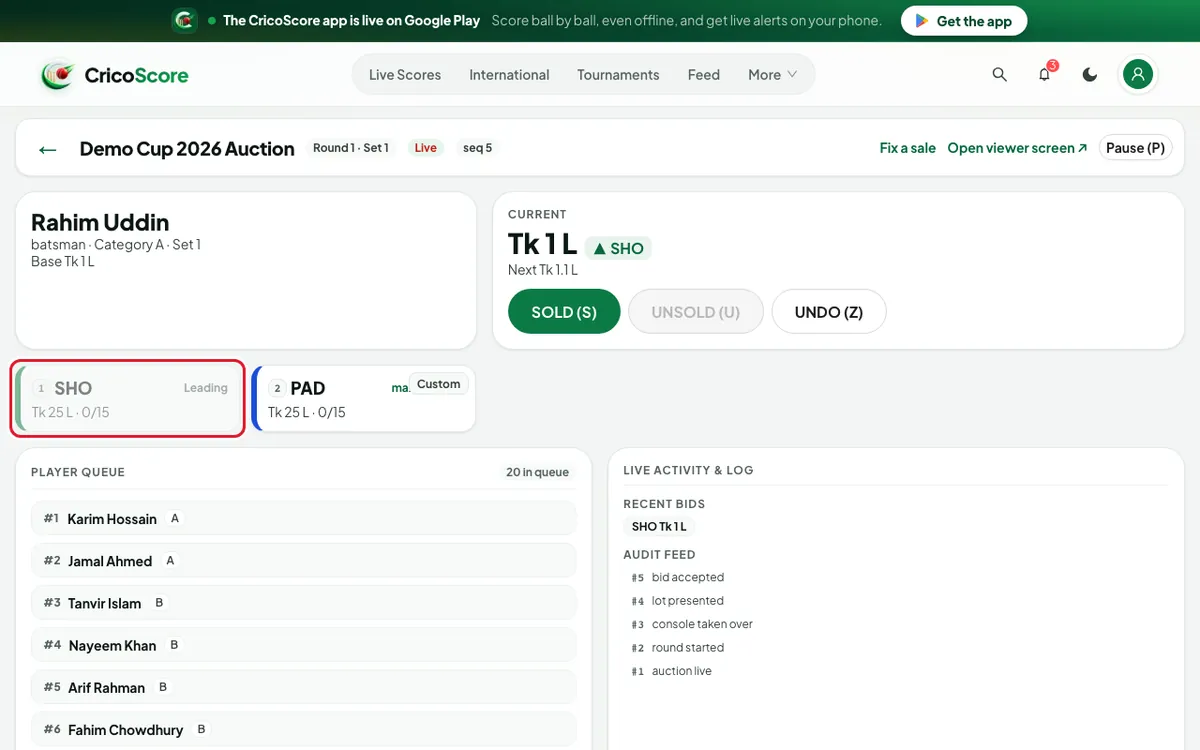
Picture 5. Tap or click to see it bigger. For a bigger jump, click Custom under the tile. Type the amount. Click Bid.
When bidding stops, click SOLD (S). A box asks Sell this player?
Check the name, team and price. Then click Sell.
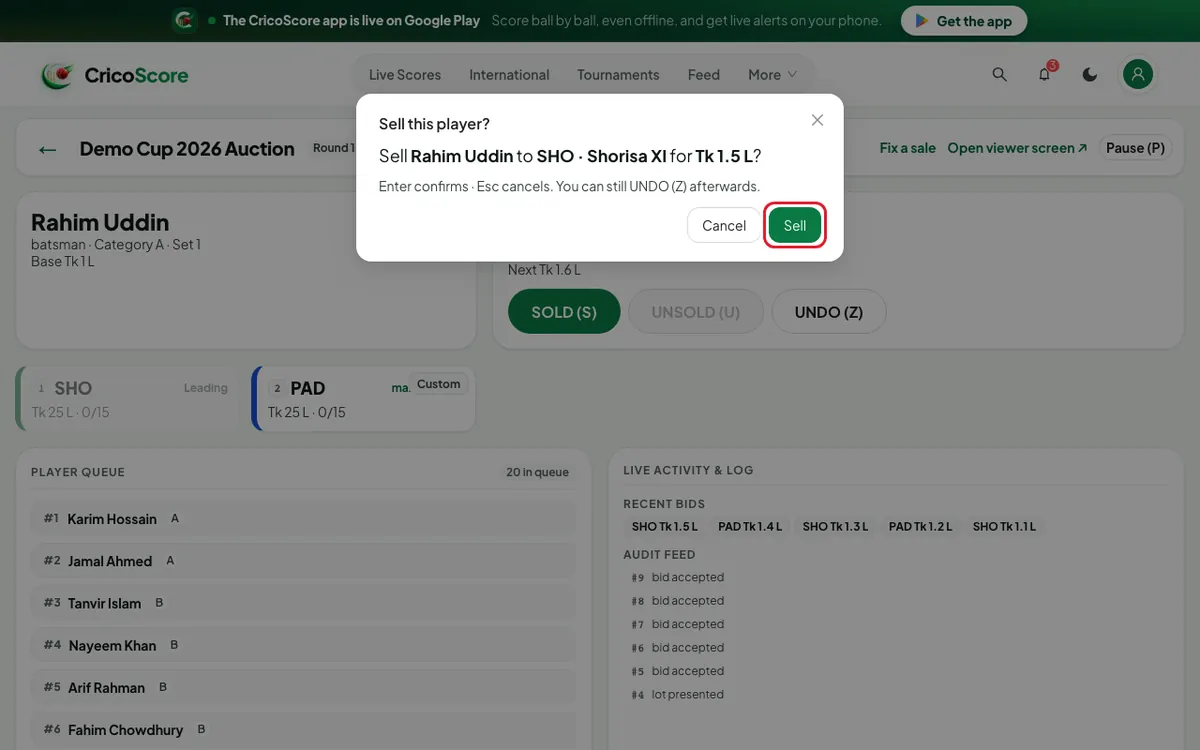
Picture 6. Tap or click to see it bigger. If nobody bids, click UNSOLD (U). Then click Mark unsold. The player can come back in the unsold round.
Part 4: Fix a mistake and finish
To take back the last step, click UNDO (Z). It undoes the last bid, sale or unsold.
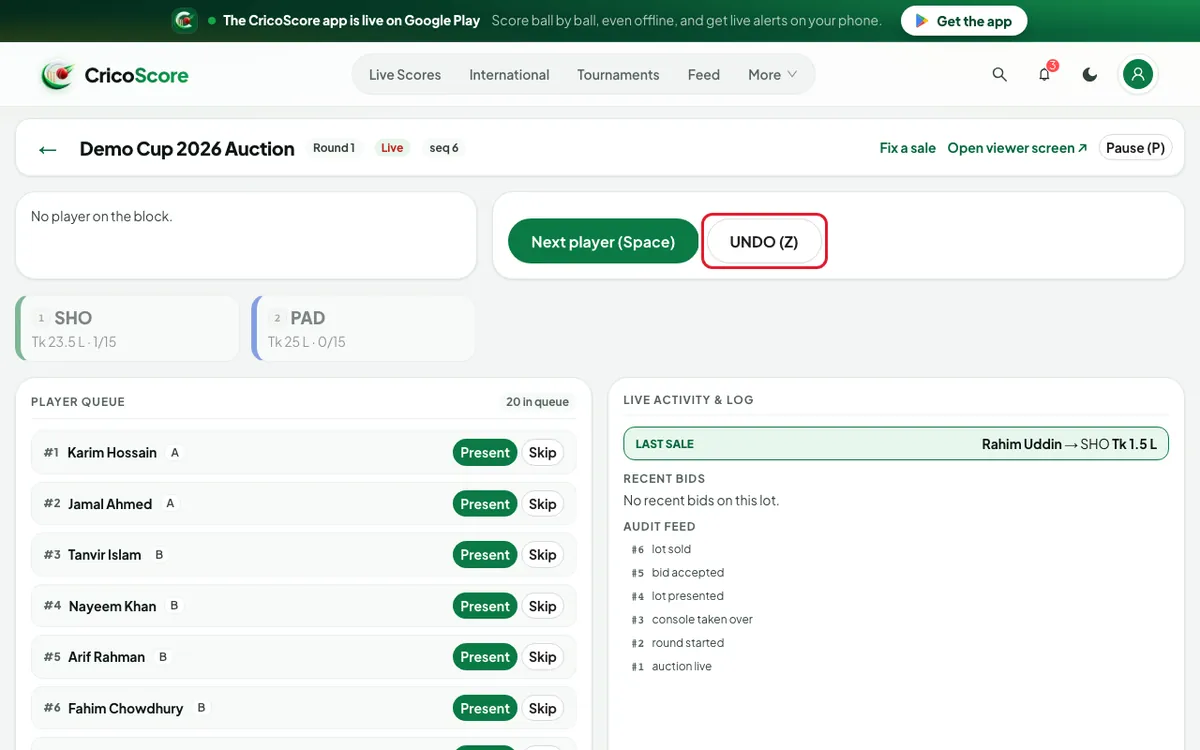
Picture 7. Tap or click to see it bigger. For a break, click Pause (P). Click Resume (P) to go on.
When the queue is empty, click Start the unsold round. Or click Complete the auction.
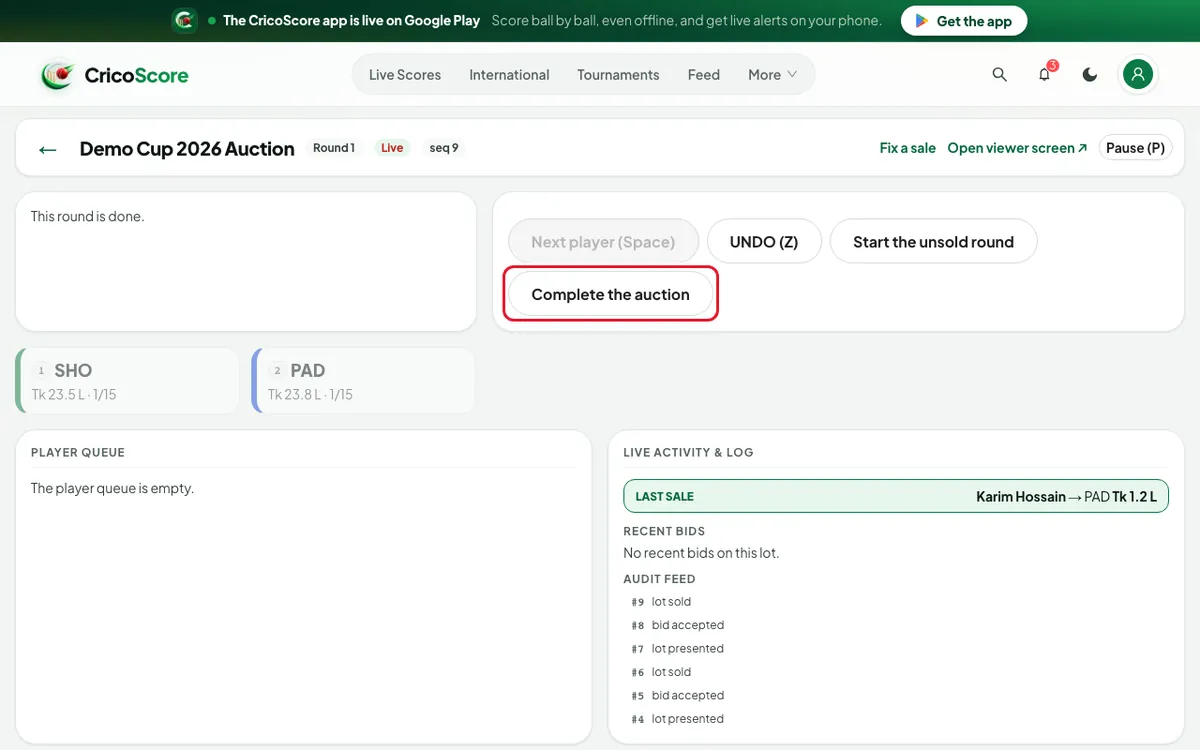
Picture 8. Tap or click to see it bigger.
Common problems
| Problem | What to do |
|---|---|
| A team tile is grey | It shows why: Leading, Squad full, Pool full, Squad rule or Max with an amount. |
| SOLD (S) is grey | Nobody has bid yet. Record a bid, or click UNSOLD (U). |
| Another device is running the console. This one is read-only. | Click Take over to run it here. |
| Reconnecting… the screen refreshes every few seconds. | Check your internet. Wait a moment. |
| You can’t run this auction | Only the owner or a Manager can open the console. |