


Organise tournaments
How to create and set up a tournament on a computer
After this guide, your tournament has a name, a logo, teams, squads and groups.
Who can do this
Any organiser. To change a tournament later, you must be its owner or a Manager (see WF5).
Before you start
Organiser tools are on. See How to turn on organiser tools.
The team names, and the player names for each squad.
Part 1: Create the tournament
On the My Cricket page, click New tournament.
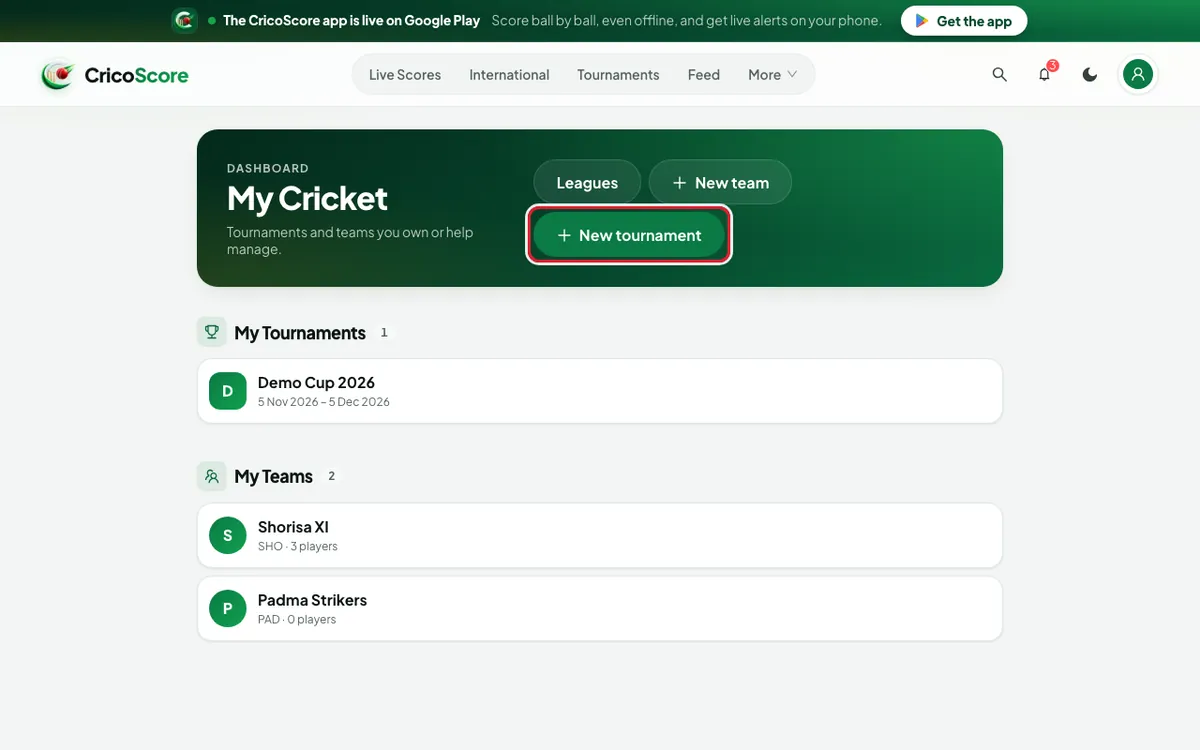
Picture 1. Tap or click to see it bigger. Type the name in Tournament name. Example: "Demo Cup 2026". Only the name is required.
Fill in the other boxes if you know them, like the dates and Format.
Want a knockout stage? Turn on Knockout stage.
Click Create tournament. Your tournament page opens.
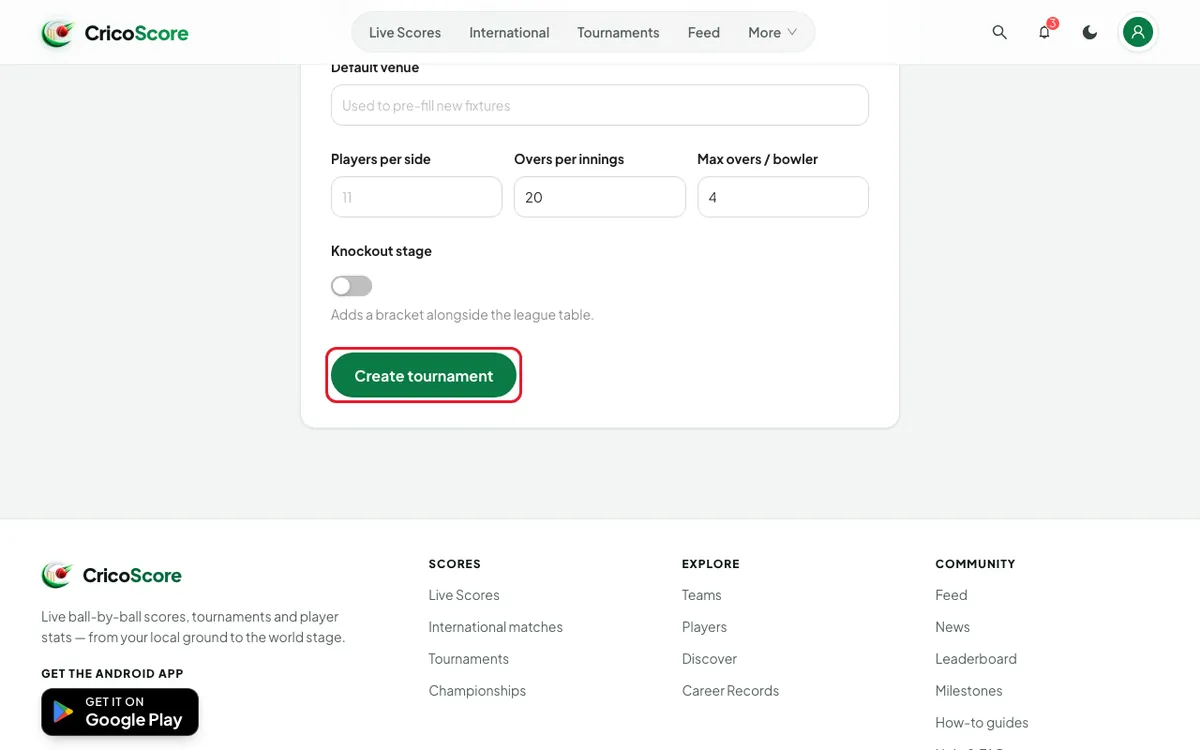
Picture 2. Tap or click to see it bigger.
Part 2: Add a logo and cover photo
Click the Settings tab.
Under Logo, click Add logo. Choose a picture on your computer.
Drag the picture to frame it. Click Use logo.
Under Cover photo, click Add cover. Frame it and click Use cover.
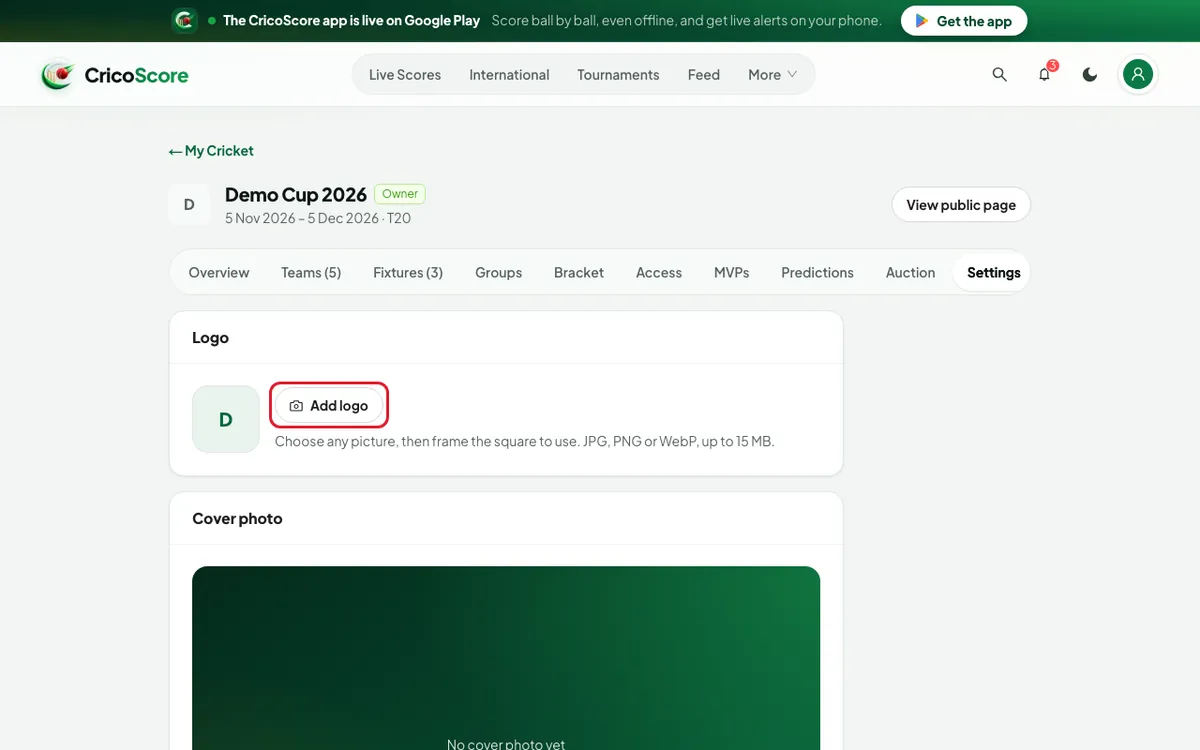
Picture 3. Tap or click to see it bigger.
Part 3: Add teams
Click the Teams tab, then Add teams.
Click each of your teams to tick it.
Is a team missing? Type its name. Click Create & add "…". Example: "Meghna Riders".
Click Add 2 teams (the number changes). Then click Done.
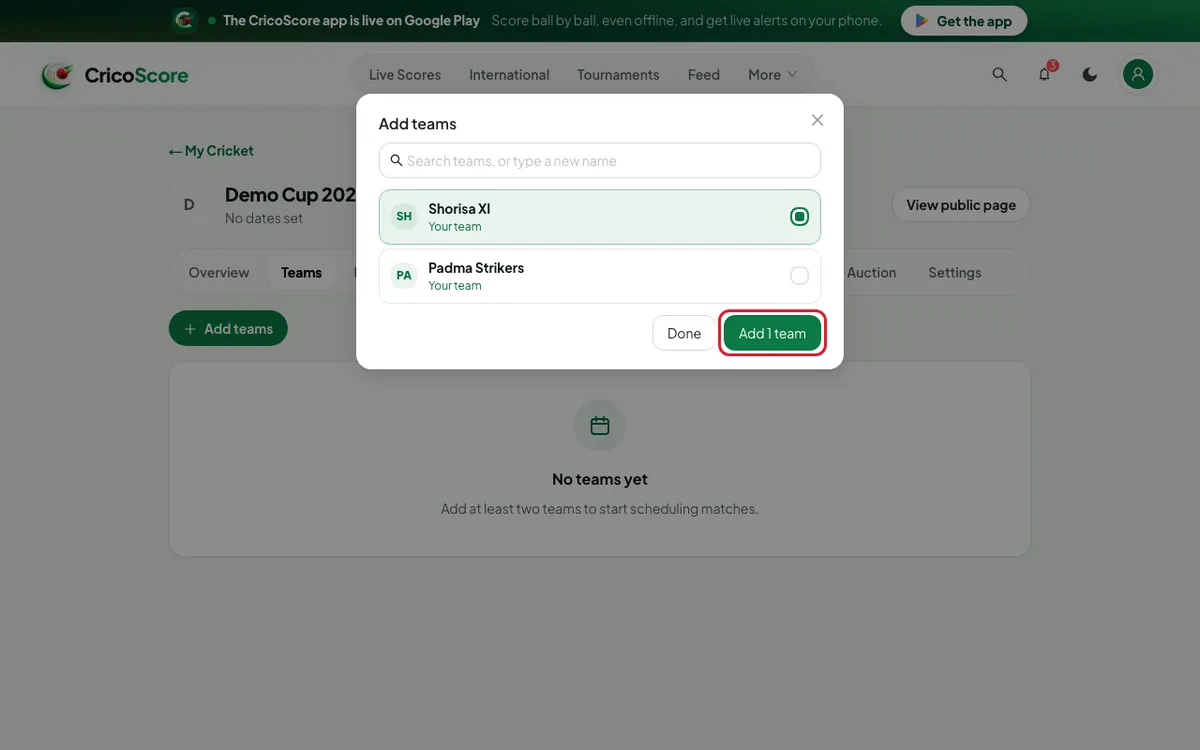
Picture 4. Tap or click to see it bigger.
Part 4: Add players to a squad
On the Teams tab, click Squad next to a team.
Choose a Role, for example Player or Captain.
Type the player's name. Click Add.
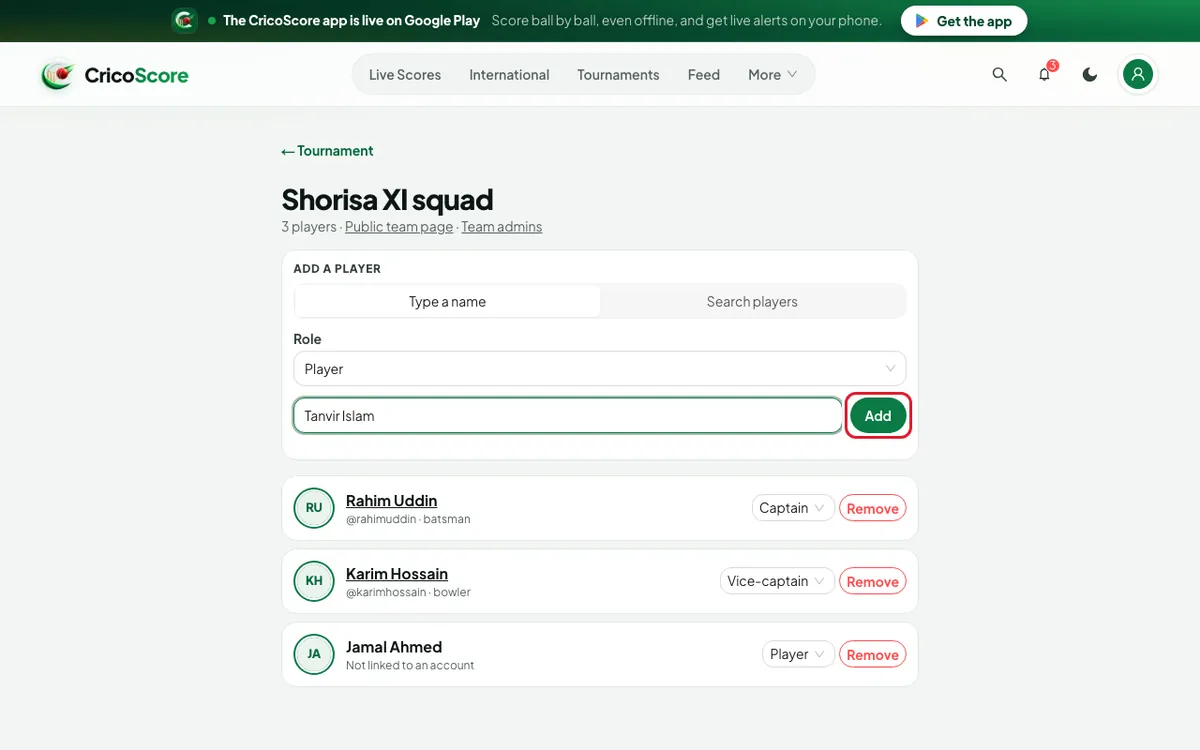
Picture 5. Tap or click to see it bigger.
Player has an account? Click Search players, find them, and click Add.
Part 5: Make groups (optional)
Click the Groups tab.
Type a group name, like "Group A". Click Add group.
Under Unassigned, click a team. Click the group to move it there.
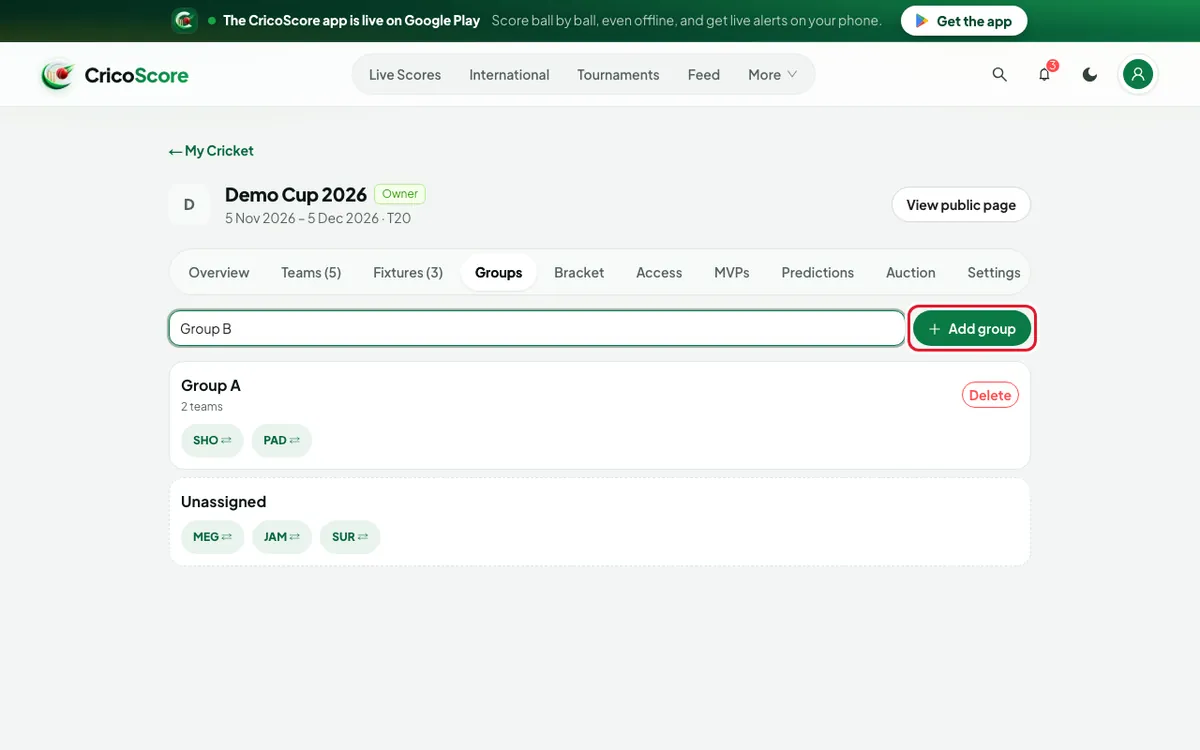
Picture 6. Tap or click to see it bigger.
Common problems
| Problem | What to do |
|---|---|
| Enter a tournament name | The name box is empty. Type a name. |
| End date cannot be before the start date | Choose an end date on or after the start date. |
| That picture is over 15 MB. Choose a smaller one. | Use a smaller picture. JPG, PNG or WebP only. |
| I can't see the Settings tab | Only the owner and Managers see it. Ask the owner. |
| I want to delete the tournament | Only the owner can. Go to Settings, then Danger zone. This deletes all its matches too, for everyone. It can't be undone. |