


Your account
How to change your name, password, or delete your account on the website
You will change your name or password on cricoscore.app. You will also see how to delete your account.
Who can do this
Anyone with an account.
Before you start
A phone or computer with internet.
Sign in on the website. See How to sign in on the website.
To change your password, you need your current password.
Steps
Open My account
Click (or tap on a phone) your picture at the top right. The account menu opens.
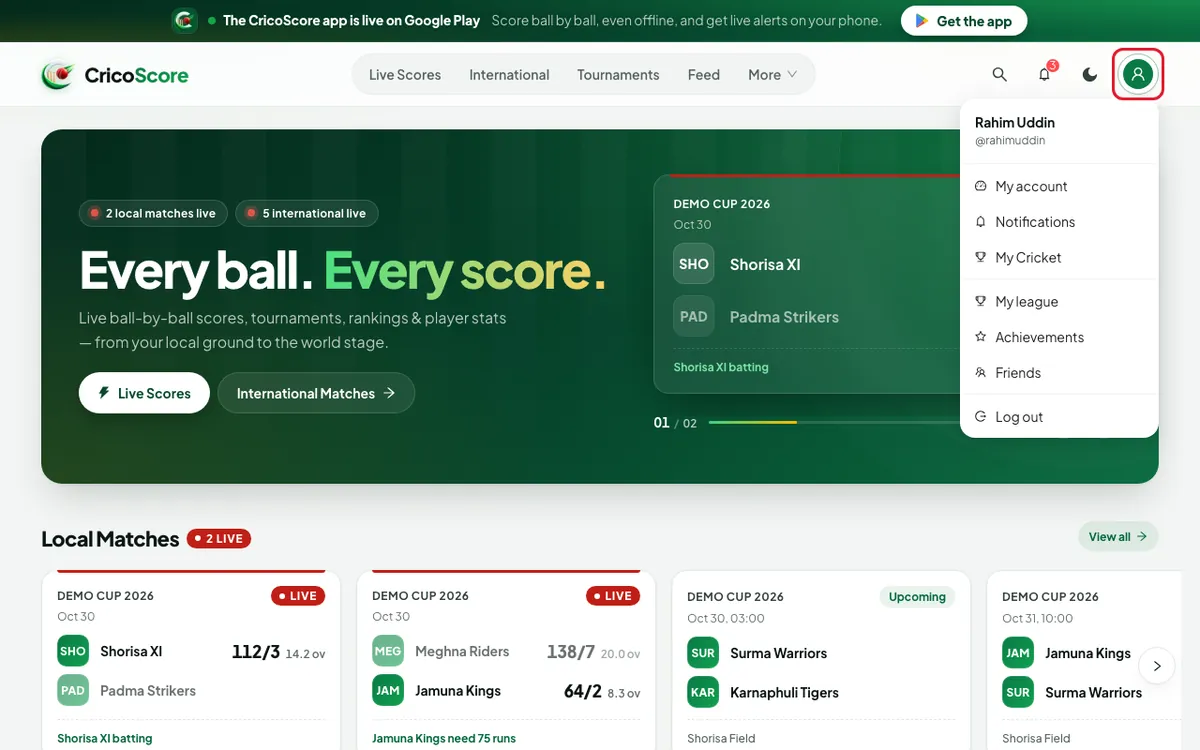
Picture 1. Tap or click to see it bigger. Click My account. The website opens your account page.
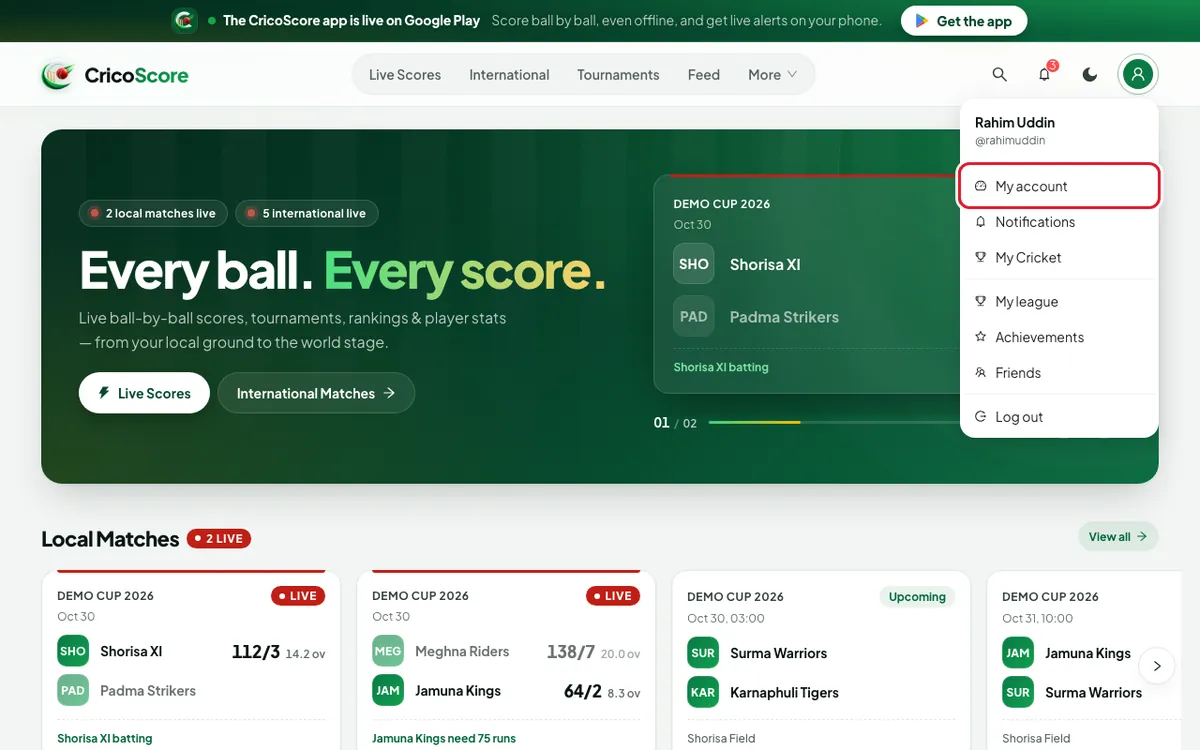
Picture 2. Tap or click to see it bigger.
Change your name
In Account details, type your name in the Full name box.
Click Save changes. You see Account updated.
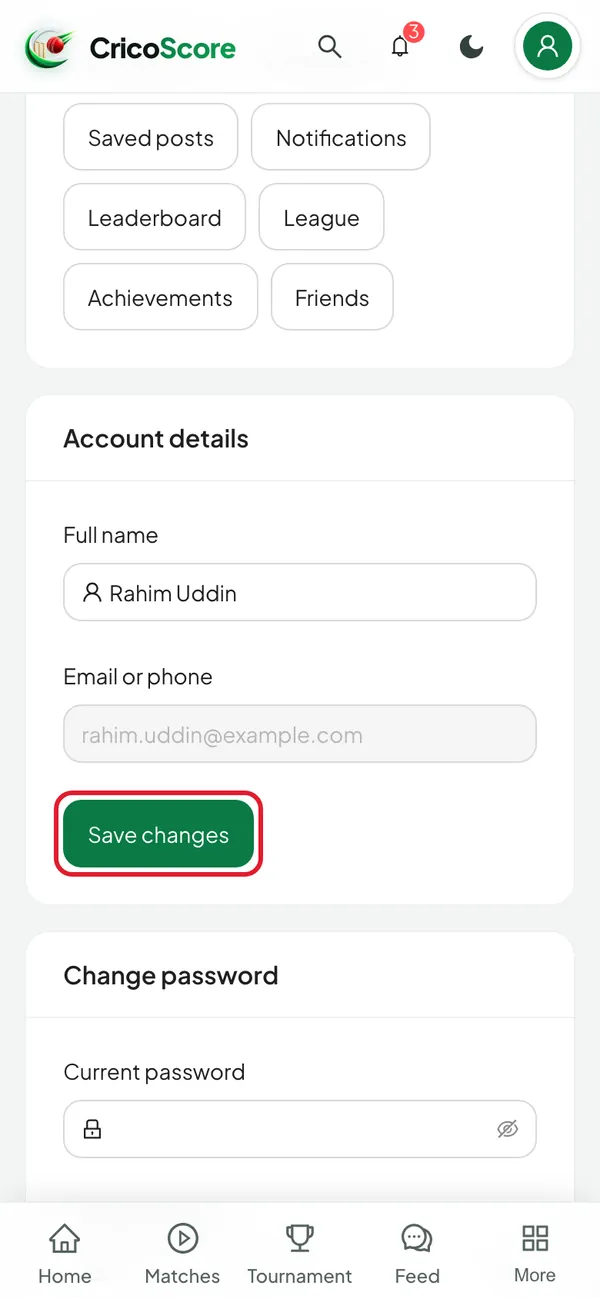
Picture 3. Tap or click to see it bigger.
Change your password
In Change password, type your old password in Current password.
Type a new password in New password. Use 6 to 64 characters.
Type it again in Confirm new password.
Click Change password. You see Password changed.
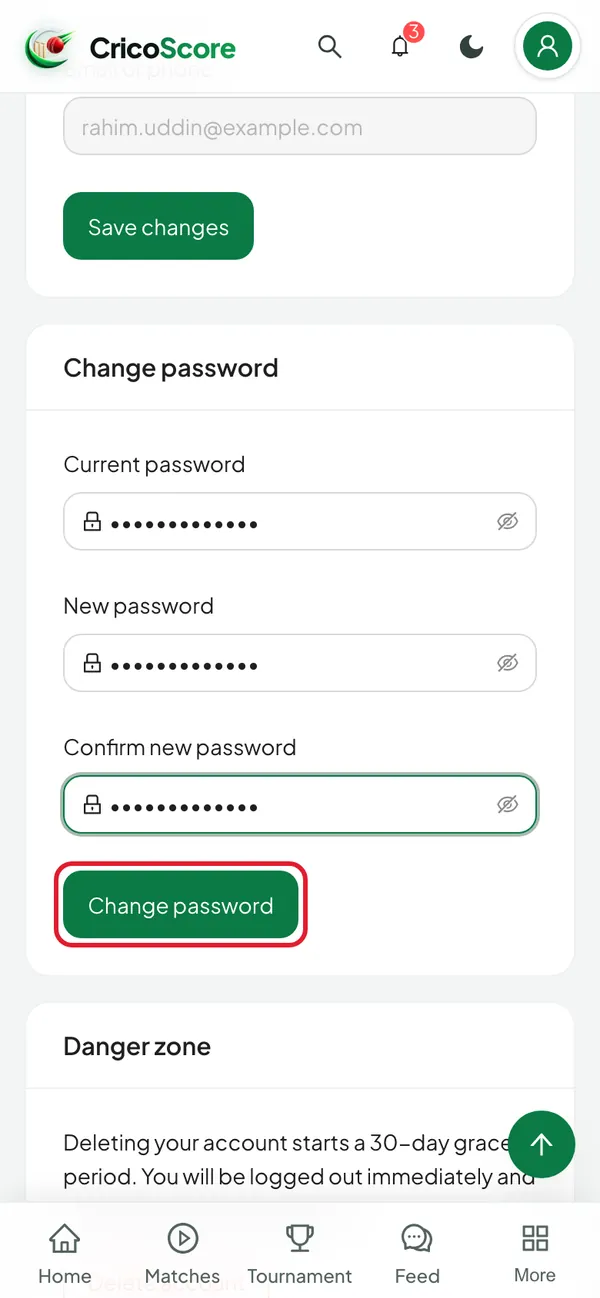
Picture 4. Tap or click to see it bigger.
Delete your account
At the bottom, in Danger zone, click Delete account. A box opens.
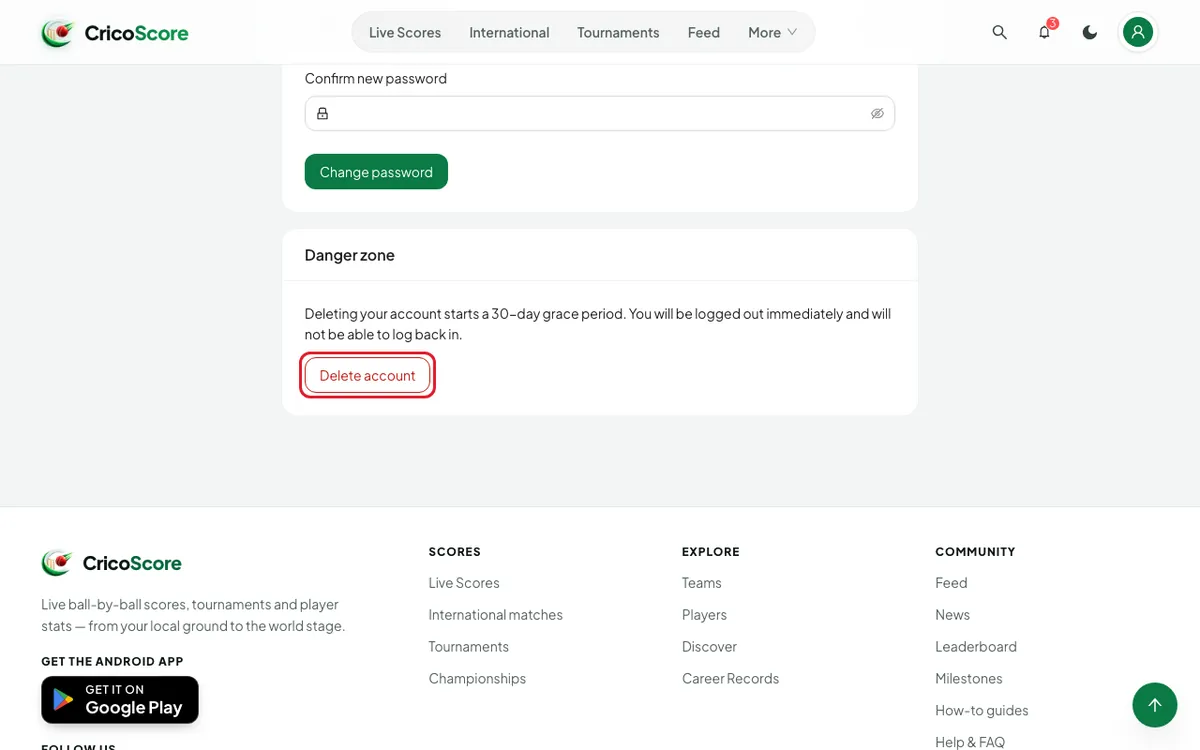
Picture 5. Tap or click to see it bigger. Type your username in the Handle box. The box shows it in grey to help you.
Click Permanently delete my account. You see Account deletion scheduled. The home page opens.
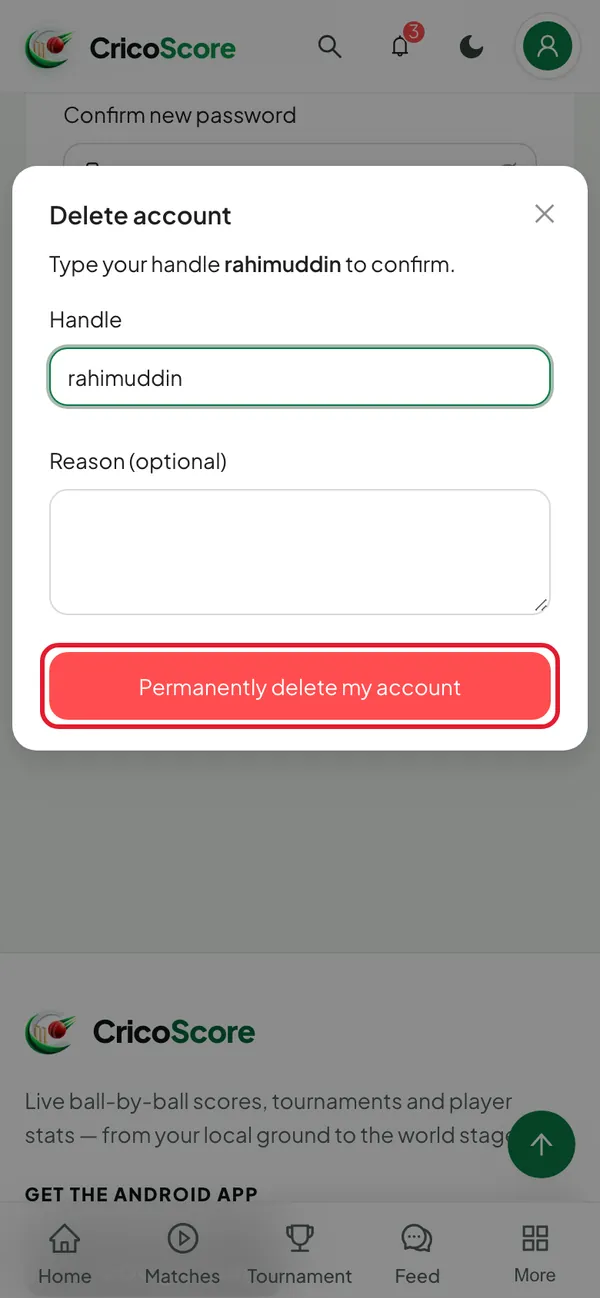
Picture 6. Tap or click to see it bigger.
Common problems
| Problem | What to do |
|---|---|
| Delete account is grey and won't click | Your account has no username yet. The page says to contact support. Or make a profile first: see How to edit your profile and username. |
| I see Handle confirmation does not match | Type your username exactly, without the @. |
| I see Passwords do not match | Type the same new password in both boxes. |
| I forgot my current password | Log out, then use "Forgot password". See How to reset your password. |
| I see This account has been deleted. when I sign in | The account was deleted and can't be brought back. Make a new account with How to sign in on the website. |
| I see An account with this email already exists when I make a new account | Your old, deleted account still holds that email or phone for up to 30 days. Use a different email or phone number, or wait 30 days. |